
Why use the Temporary Link feature?
All of our web app are designed to be used during therapy sessions, particularly online sessions using platforms such as Zoom, Microsoft Teams, Google Meet or Doxy.
In many sessions, the therapist may share their screen and use the app while the client talks through their choices. This can work well, but the app is usually most helpful when the client can interact with it directly. Choosing cards, moving them, adding notes, and exploring the images themselves can make the activity feel more personal, responsive, and collaborative.
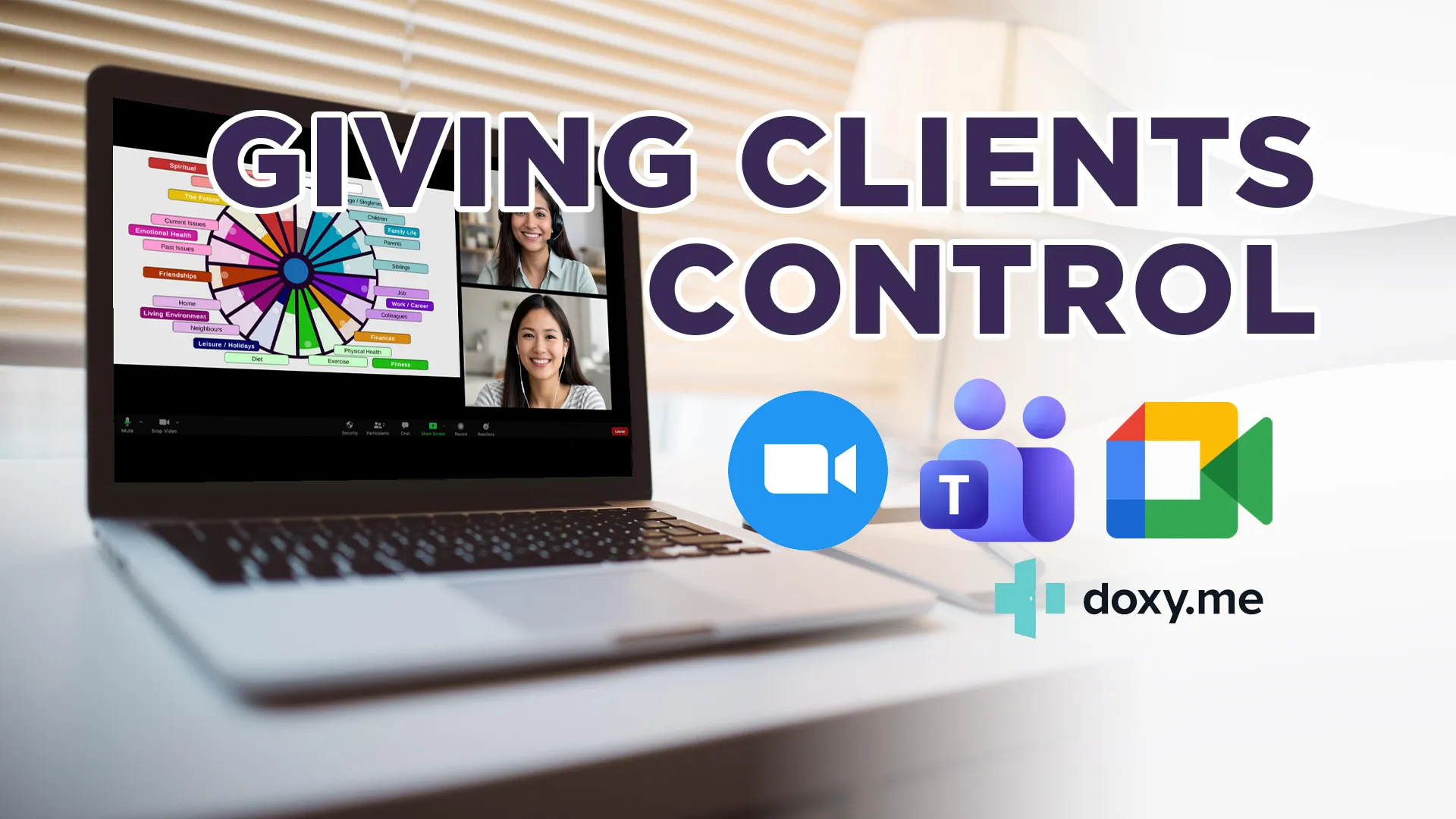
Some video call platforms allow remote control, where the client can control the therapist’s shared screen. Zoom and Microsoft Teams can support this, depending on settings. However, remote control can sometimes feel laggy, awkward, or unreliable. Google Meet does not generally offer the same kind of full remote-control experience.
The Generate Temporary Link feature provides a cleaner option.
When you click Generate Temporary Link, you can create a link that gives your client 1 hour of access to the web app. You can send this link to your client during the session. They can then open the app on their own device, use it directly, and share their screen with you if needed.
This can be especially useful when:
- remote control is not available;
- remote control feels slow or difficult to use;
- the client would benefit from having direct control;
- the client is using a different device from the therapist;
- you want the client to have a smoother, more responsive experience;
- you are using Google Meet, where full remote control is not usually available.
The temporary link is intended for live session use. It gives the client short-term access so they can use the app with you during the session.
How to use the temporary link
Watch the video below to learn more about how to give temporary access to your clients.
How to use the temporary link
- Open the web app that you wish to use.
- Click the Generate Temporary Link button.
- Follow the instructions in the temporary link section.
- Copy the link that is generated.
- Send the link to your client through your video call chat, secure messaging system, or another agreed method.
- Ask the client to open the link in their browser.
- The client can then use the app directly.
- If you want to see what they are doing, ask them to share their screen, browser tab, or app window.
Using it with Zoom
Zoom can allow screen sharing and remote control, but the temporary link may still provide a smoother experience.
Suggested approach:
- Start your Zoom session as usual.
- Click Generate Temporary Link in the app.
- Paste the temporary link into the Zoom chat.
- Ask the client to open the link in their browser.
- Ask the client to share their screen or browser window so you can see the app.
- The client can then choose cards and interact with the app directly.
If the client cannot share their screen, check that participant screen sharing is allowed in Zoom. The host or co-host may need to enable participant screen sharing.
Using it with Microsoft Teams
Microsoft Teams can allow a participant to give or request control during screen sharing, but this depends on meeting and organisation settings. Some organisations disable control features, and some devices may not support them reliably.
Suggested approach:
- Start your Teams session as usual.
- Click Generate Temporary Link in the app.
- Paste the temporary link into the Teams chat.
- Ask the client to open the link in their browser.
- Ask the client to share their screen or browser window.
- The client can use the app directly while you observe and discuss their choices.
This is often easier than relying on Teams remote control, especially if the client is external to your organisation or control settings are restricted.
Using it with Google Meet
Google Meet works well for screen sharing, but it does not usually provide the same full remote-control option as Zoom or Teams. This makes the temporary link especially useful.
Suggested approach:
- Start your Google Meet session as usual.
- Click Generate Temporary Link in the app.
- Paste the temporary link into the Google Meet chat.
- Ask the client to open the link in their browser.
- Ask the client to present their browser tab, window, or screen.
- The client can then control the app themselves while you continue the therapeutic conversation.
For the best experience, the client should use an up-to-date browser. If they are sharing the app, sharing a browser tab or window is usually clearer than sharing their entire desktop.
Using it with Doxy.me
Doxy.me is another useful platform for online therapy, especially because clients can usually join through their browser without needing to download an app or create an account.
The temporary link feature can work well alongside Doxy.me. Rather than relying on the therapist to control the app while sharing their own screen, the therapist can send the client a temporary link so the client can open the web app directly on their own device.
Suggested approach:
- Start your Doxy.me session as usual.
- Click Generate Temporary Link in the app.
- Copy the temporary link.
- Send the link to the client using the Doxy.me chat box, or another agreed secure method.
- Ask the client to open the link in a new browser tab or window.
- The client can then use the app directly.
- If screen sharing is available in your Doxy.me setup, ask the client to share the browser tab or window showing the app so you can follow their choices.
- Continue the therapeutic conversation while the client selects cards, moves items, and engages with the app themselves.
This can be especially useful if you want the client to have a more active role in the session. It also reduces the need for the therapist to interpret instructions such as “move that one over there” or “click the card on the left.” The client can simply use the app themselves while the therapist observes, reflects, and supports the process.
If screen sharing is not available in your Doxy.me plan or setup, the temporary link can still be useful. The client can open the app, make their choices privately, and then talk the therapist through what they have selected.
Therapist tip
Before using the temporary link, explain briefly what it does:
“I’m going to send you a temporary link so you can open the card app on your own device. It will only give you access for this session. Once you open it, you can choose and move the cards yourself, and if you’re comfortable, you can share your screen so I can see what you’re doing.”
This helps the client understand that the link is temporary, session-based, and part of the therapeutic activity.