Using the Virtual Sand Tray
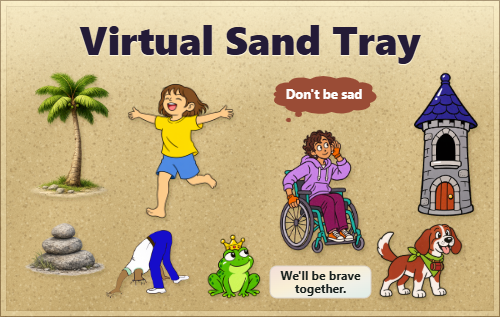
The Virtual Sand Tray is a browser-based tool for counsellors and therapists working with clients online. It gives clients a space to build a scene using backgrounds, figures, objects, emojis and editable labels. A client might use it to tell a story, show how a situation feels, or explore an idea that is difficult to put into words.
There is no right way to build a tray. The client can choose what to include, what it means to them and how much they want to share.
Build a Tray
- Choose a background. Click Background in the top bar. Browse the sand textures and illustrated scenes, or use Search backgrounds. Click a preview to apply it. You can change the background without removing the objects already on the tray.
- Find an object. In the Add Objects panel on the left, choose a category or use Search images. Select All to search across the full library.
- Place it on the tray. Drag an object from the picker to wherever you want it, or click it to add it to the centre. You can then drag it to a new position.
Arrange Objects
Click an object to select it. A green outline appears around it, and the Object panel on the right shows its controls.
- Resize: Drag the double-headed arrow at the top right of the outline, or use the Size slider.
- Rotate: Click and hold the curved arrow on the right edge of the outline and move the mouse around the object. You can also use the Rotation slider.
- Flip: Use Flip H to mirror the object left to right, or Flip V to flip it top to bottom.
- Change layers: Use Back or Front to change which objects appear in front when they overlap.
- Duplicate or delete: Use Duplicate to make a copy. To remove a selected object, click the red X at the top left of its outline or use Delete in the right panel.
Use Undo and Redo in the top bar to step back and forward through changes. To remove everything from the tray while keeping the background, click the Clear Tray bin icon and confirm.
Add Words
Choose Labels to find speech bubbles, thought bubbles, text boxes and editable phrases. Once a label is on the tray, double-click it to type directly into it, or select it and edit the Text field in the right panel. You can move and resize labels like any other object. If you flip a bubble to point it in another direction, the text stays readable.
Import Images
Click Import Image to add your own PNGs. Choose Object or character or Background, add a category and optional search tags, then click Import PNG Files. A transparent PNG works best for an object you want to place over the scene.
Imported images are stored in the browser you used. They do not become part of the shared library or automatically appear in your client’s browser.
Save and Load
Open Load / Save, enter a filename in Save as, and click Save. This downloads a session file. To reopen it later, choose Load / Save → Load and select the saved .json file. Loading replaces the current tray, so save any work you want to keep first.
Agree with your client whether the tray should be saved. It may contain sensitive images or words, so handle the file as you would other confidential client material. Exit asks you to confirm before leaving; choose Stay if you still need to save. Use Old Version opens the previous app in a separate tab.
Generate Client Link
Generate Link is useful when your video platform doesn’t offer remote control or screen sharing from your side isn’t working well. It lets the client use the tray directly in their own browser instead of needing to control yours.
- Click Generate Link in the top bar to go to the link section below the app.
- Generate a temporary link and send it privately to your client. The link lasts for one hour.
- Ask your client to open the link and, if their video platform allows it, share the browser tab containing their tray back to you. They can build while you watch and talk together.
The link gives the client access to the app; it does not share your current tray or synchronise your two screens. If the client can’t share their screen, they can describe what they’re making, or you can share your tray and place objects as they direct you.
Ideas for Sessions
- Start with the present. Invite the client to choose a background and one or two objects that represent how things feel today. Ask, “What would you like me to notice about this?”
- Explore a relationship or situation. The client can use figures for people, roles or feelings and decide where each belongs. Ask what the distances and positions mean to them rather than interpreting the arrangement yourself.
- Show thoughts and words. Try a speech bubble for what someone says and a thought bubble for what they might be thinking or feeling. The client can leave either blank or decide not to share it.
- Imagine a change. Ask, “Is there anything you’d like to move, add or leave just as it is?” The client can use Undo to try a different arrangement without committing to it.
- Close together. Give the client time to look at the tray and decide what, if anything, they’d like to take from the activity. Agree whether to save it for another session or leave it unsaved.